# OpenClaw Mission Control
[](https://github.com/abhi1693/openclaw-mission-control/actions/workflows/ci.yml) 
OpenClaw Mission Control is the centralized operations and governance platform for running OpenClaw across teams and organizations, with unified visibility, approval controls, and gateway-aware orchestration.
It gives operators a single interface for work orchestration, agent and gateway management, approval-driven governance, and API-backed automation.


 ## Platform overview
Mission Control is designed to be the day-to-day operations surface for OpenClaw.
Instead of splitting work across multiple tools, teams can plan, execute, review, and audit activity in one system.
Core operational areas:
- Work orchestration: manage organizations, board groups, boards, tasks, and tags.
- Agent operations: create, inspect, and manage agent lifecycle from a unified control surface.
- Governance and approvals: route sensitive actions through explicit approval flows.
- Gateway management: connect and operate gateway integrations for distributed environments.
- Activity visibility: review a timeline of system actions for faster debugging and accountability.
- API-first model: support both web workflows and automation clients from the same platform.
## Use cases
- Multi-team agent operations: run multiple boards and board groups across organizations from a single control plane.
- Human-in-the-loop execution: require approvals before sensitive actions and keep decision trails attached to work.
- Distributed runtime control: connect gateways and operate remote execution environments without changing operator workflow.
- Audit and incident review: use activity history to reconstruct what happened, when it happened, and who initiated it.
- API-backed process integration: connect internal workflows and automation clients to the same operational model used in the UI.
## What makes Mission Control different
- Operations-first design: built for running agent work reliably, not just creating tasks.
- Governance built in: approvals, auth modes, and clear control boundaries are first-class.
- Gateway-aware orchestration: built to operate both local and connected runtime environments.
- Unified UI and API model: operators and automation act on the same objects and lifecycle.
- Team-scale structure: organizations, board groups, boards, tasks, tags, and users in one system of record.
## Who it is for
- Platform teams running OpenClaw in self-hosted or internal environments.
- Operations and engineering teams that need clear approval and auditability controls.
- Organizations that want API-accessible operations without losing a usable web UI.
## Get started in minutes
### Option A: One-command production-style bootstrap
If you haven't cloned the repo yet, you can run the installer in one line:
```bash
curl -fsSL https://raw.githubusercontent.com/abhi1693/openclaw-mission-control/master/install.sh | bash
```
This clones the repository into `./openclaw-mission-control` if no local checkout is found in your current directory.
If you already cloned the repo:
```bash
./install.sh
```
The installer is interactive and will:
- Ask for deployment mode (`docker` or `local`).
- Install missing system dependencies when possible.
- Generate and configure environment files.
- Bootstrap and start the selected deployment mode.
Installer support matrix: [`docs/installer-support.md`](./docs/installer-support.md)
### Option B: Manual setup
### Prerequisites
- **Supported platforms**: Linux and macOS. On macOS, Docker mode requires [Docker Desktop](https://www.docker.com/products/docker-desktop/); local mode requires [Homebrew](https://brew.sh) and Node.js 22+.
- Docker Engine
- Docker Compose v2 (`docker compose`)
### 1. Configure environment
```bash
cp .env.example .env
```
Before startup:
- Set `LOCAL_AUTH_TOKEN` to a non-placeholder value (minimum 50 characters) when `AUTH_MODE=local`.
- Ensure `BASE_URL` matches the public backend origin if you are not using `http://localhost:8000`.
- `NEXT_PUBLIC_API_URL=auto` (default) resolves to `http(s)://:8001`.
- Set an explicit URL when your API is behind a reverse proxy or non-default port.
### 2. Start Mission Control
```bash
docker compose -f compose.yml --env-file .env up -d --build
```
If you are iterating on the UI in Docker and want automatic frontend rebuilds on
source changes, run:
```bash
docker compose -f compose.yml --env-file .env up --build --watch
```
Notes:
- Compose Watch requires Docker Compose **2.22.0+**.
- You can also run watch separately after startup:
```bash
docker compose -f compose.yml --env-file .env up -d --build
docker compose -f compose.yml --env-file .env watch
```
After pulling new changes, rebuild and recreate all services:
```bash
docker compose -f compose.yml --env-file .env up -d --build --force-recreate
```
For a fully clean rebuild (no cached build layers):
```bash
docker compose -f compose.yml --env-file .env build --no-cache --pull
docker compose -f compose.yml --env-file .env up -d --force-recreate
```
### 3. Open the application
- Mission Control UI: http://localhost:3000
- Backend health: http://localhost:8000/healthz
### 4. Stop the stack
```bash
docker compose -f compose.yml --env-file .env down
```
## Authentication
Mission Control supports two authentication modes:
- `local`: shared bearer token mode (default for self-hosted use)
- `clerk`: Clerk JWT mode
### Local auth mode
Set `AUTH_MODE=local` (backend) and `NEXT_PUBLIC_AUTH_MODE=local` (frontend).
**Option 1 — Token in environment (recommended for self-hosted)**
Set `NEXT_PUBLIC_LOCAL_AUTH_TOKEN` in the frontend environment. The app loads directly with no login screen. The token is used automatically for every API call.
```env
NEXT_PUBLIC_AUTH_MODE=local
NEXT_PUBLIC_LOCAL_AUTH_TOKEN=your-bearer-token-here
```
**Option 2 — Token entered on load**
Leave `NEXT_PUBLIC_LOCAL_AUTH_TOKEN` unset. On first load, users are presented with a login screen and must paste their bearer token before accessing the app. The token is stored in `sessionStorage` for the duration of the browser session.
```env
NEXT_PUBLIC_AUTH_MODE=local
# NEXT_PUBLIC_LOCAL_AUTH_TOKEN is not set — login screen will appear
```
The bearer token must match `LOCAL_AUTH_TOKEN` set on the backend (minimum 50 characters).
### Clerk mode
Set `AUTH_MODE=clerk` and configure `NEXT_PUBLIC_CLERK_PUBLISHABLE_KEY` and `CLERK_SECRET_KEY`.
### Environment templates
- Root: [`.env.example`](./.env.example)
- Backend: [`backend/.env.example`](./backend/.env.example)
- Frontend: [`frontend/.env.example`](./frontend/.env.example)
## AI provider credentials
When running in `AUTH_MODE=local`, Mission Control automatically configures AI provider credentials on startup by reading the credential files written by the Claude Code and Codex CLI VS Code extensions.
### What gets read and where
| Provider | File | Field |
|---|---|---|
| Anthropic / Claude | `~/.claude/.credentials.json` | `claudeAiOauth.accessToken` |
| OpenAI / GPT | `~/.codex/auth.json` | `tokens.access_token` |
These are the same files the extensions update when you log in or out.
No manual configuration is required if either extension is installed and authenticated.
### How it works
On every boot the backend seeds `provider_credentials` rows from those files.
A background watcher then polls the file modification times every **60 seconds**.
When a change is detected (login, logout, token refresh) the affected row is updated automatically — you are reconfigured within one polling cycle of any credential change.
Seeding is idempotent: rows are only written when the stored token differs from what is on disk.
If a file is absent or the token has expired, that provider is skipped without error.
### Override credential file paths
Set environment variables to point to non-default locations:
```env
CLAUDE_CREDENTIALS_PATH=/path/to/.credentials.json
CODEX_CREDENTIALS_PATH=/path/to/auth.json
```
### Supplement with explicit API keys
Session tokens from the local files grant subscription-level access.
To also configure standard API keys (for rate-limit or billing endpoints), add these to `.env`:
```env
ANTHROPIC_API_KEY=sk-ant-...
OPENAI_API_KEY=sk-...
OPENAI_BASE_URL=http://localhost:11434/v1 # Ollama, Azure, or any OpenAI-compatible endpoint
```
### Run the seeder manually
```bash
# one-shot seed
python backend/scripts/seed_provider_credentials.py
# continuous watcher (re-seeds every 60 s when files change)
python backend/scripts/seed_provider_credentials.py --watch
# custom poll interval
python backend/scripts/seed_provider_credentials.py --watch --interval 30
```
## Documentation
Complete guides for deployment, production, troubleshooting, and testing are in [`/docs`](./docs/).
## Project status
Mission Control is under active development.
- Features and APIs may change between releases.
- Validate and harden your configuration before production use.
## Contributing
Issues and pull requests are welcome.
- [Contributing guide](./CONTRIBUTING.md)
- [Open issues](https://github.com/abhi1693/openclaw-mission-control/issues)
## License
This project is licensed under the MIT License. See [`LICENSE`](./LICENSE).
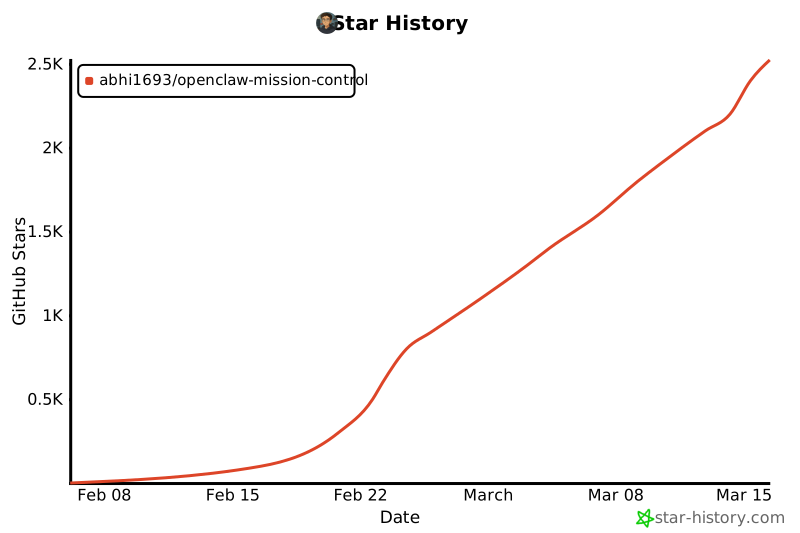
## Star History
[](https://www.star-history.com/#abhi1693/openclaw-mission-control&type=date&legend=top-left)
## Platform overview
Mission Control is designed to be the day-to-day operations surface for OpenClaw.
Instead of splitting work across multiple tools, teams can plan, execute, review, and audit activity in one system.
Core operational areas:
- Work orchestration: manage organizations, board groups, boards, tasks, and tags.
- Agent operations: create, inspect, and manage agent lifecycle from a unified control surface.
- Governance and approvals: route sensitive actions through explicit approval flows.
- Gateway management: connect and operate gateway integrations for distributed environments.
- Activity visibility: review a timeline of system actions for faster debugging and accountability.
- API-first model: support both web workflows and automation clients from the same platform.
## Use cases
- Multi-team agent operations: run multiple boards and board groups across organizations from a single control plane.
- Human-in-the-loop execution: require approvals before sensitive actions and keep decision trails attached to work.
- Distributed runtime control: connect gateways and operate remote execution environments without changing operator workflow.
- Audit and incident review: use activity history to reconstruct what happened, when it happened, and who initiated it.
- API-backed process integration: connect internal workflows and automation clients to the same operational model used in the UI.
## What makes Mission Control different
- Operations-first design: built for running agent work reliably, not just creating tasks.
- Governance built in: approvals, auth modes, and clear control boundaries are first-class.
- Gateway-aware orchestration: built to operate both local and connected runtime environments.
- Unified UI and API model: operators and automation act on the same objects and lifecycle.
- Team-scale structure: organizations, board groups, boards, tasks, tags, and users in one system of record.
## Who it is for
- Platform teams running OpenClaw in self-hosted or internal environments.
- Operations and engineering teams that need clear approval and auditability controls.
- Organizations that want API-accessible operations without losing a usable web UI.
## Get started in minutes
### Option A: One-command production-style bootstrap
If you haven't cloned the repo yet, you can run the installer in one line:
```bash
curl -fsSL https://raw.githubusercontent.com/abhi1693/openclaw-mission-control/master/install.sh | bash
```
This clones the repository into `./openclaw-mission-control` if no local checkout is found in your current directory.
If you already cloned the repo:
```bash
./install.sh
```
The installer is interactive and will:
- Ask for deployment mode (`docker` or `local`).
- Install missing system dependencies when possible.
- Generate and configure environment files.
- Bootstrap and start the selected deployment mode.
Installer support matrix: [`docs/installer-support.md`](./docs/installer-support.md)
### Option B: Manual setup
### Prerequisites
- **Supported platforms**: Linux and macOS. On macOS, Docker mode requires [Docker Desktop](https://www.docker.com/products/docker-desktop/); local mode requires [Homebrew](https://brew.sh) and Node.js 22+.
- Docker Engine
- Docker Compose v2 (`docker compose`)
### 1. Configure environment
```bash
cp .env.example .env
```
Before startup:
- Set `LOCAL_AUTH_TOKEN` to a non-placeholder value (minimum 50 characters) when `AUTH_MODE=local`.
- Ensure `BASE_URL` matches the public backend origin if you are not using `http://localhost:8000`.
- `NEXT_PUBLIC_API_URL=auto` (default) resolves to `http(s)://:8001`.
- Set an explicit URL when your API is behind a reverse proxy or non-default port.
### 2. Start Mission Control
```bash
docker compose -f compose.yml --env-file .env up -d --build
```
If you are iterating on the UI in Docker and want automatic frontend rebuilds on
source changes, run:
```bash
docker compose -f compose.yml --env-file .env up --build --watch
```
Notes:
- Compose Watch requires Docker Compose **2.22.0+**.
- You can also run watch separately after startup:
```bash
docker compose -f compose.yml --env-file .env up -d --build
docker compose -f compose.yml --env-file .env watch
```
After pulling new changes, rebuild and recreate all services:
```bash
docker compose -f compose.yml --env-file .env up -d --build --force-recreate
```
For a fully clean rebuild (no cached build layers):
```bash
docker compose -f compose.yml --env-file .env build --no-cache --pull
docker compose -f compose.yml --env-file .env up -d --force-recreate
```
### 3. Open the application
- Mission Control UI: http://localhost:3000
- Backend health: http://localhost:8000/healthz
### 4. Stop the stack
```bash
docker compose -f compose.yml --env-file .env down
```
## Authentication
Mission Control supports two authentication modes:
- `local`: shared bearer token mode (default for self-hosted use)
- `clerk`: Clerk JWT mode
### Local auth mode
Set `AUTH_MODE=local` (backend) and `NEXT_PUBLIC_AUTH_MODE=local` (frontend).
**Option 1 — Token in environment (recommended for self-hosted)**
Set `NEXT_PUBLIC_LOCAL_AUTH_TOKEN` in the frontend environment. The app loads directly with no login screen. The token is used automatically for every API call.
```env
NEXT_PUBLIC_AUTH_MODE=local
NEXT_PUBLIC_LOCAL_AUTH_TOKEN=your-bearer-token-here
```
**Option 2 — Token entered on load**
Leave `NEXT_PUBLIC_LOCAL_AUTH_TOKEN` unset. On first load, users are presented with a login screen and must paste their bearer token before accessing the app. The token is stored in `sessionStorage` for the duration of the browser session.
```env
NEXT_PUBLIC_AUTH_MODE=local
# NEXT_PUBLIC_LOCAL_AUTH_TOKEN is not set — login screen will appear
```
The bearer token must match `LOCAL_AUTH_TOKEN` set on the backend (minimum 50 characters).
### Clerk mode
Set `AUTH_MODE=clerk` and configure `NEXT_PUBLIC_CLERK_PUBLISHABLE_KEY` and `CLERK_SECRET_KEY`.
### Environment templates
- Root: [`.env.example`](./.env.example)
- Backend: [`backend/.env.example`](./backend/.env.example)
- Frontend: [`frontend/.env.example`](./frontend/.env.example)
## AI provider credentials
When running in `AUTH_MODE=local`, Mission Control automatically configures AI provider credentials on startup by reading the credential files written by the Claude Code and Codex CLI VS Code extensions.
### What gets read and where
| Provider | File | Field |
|---|---|---|
| Anthropic / Claude | `~/.claude/.credentials.json` | `claudeAiOauth.accessToken` |
| OpenAI / GPT | `~/.codex/auth.json` | `tokens.access_token` |
These are the same files the extensions update when you log in or out.
No manual configuration is required if either extension is installed and authenticated.
### How it works
On every boot the backend seeds `provider_credentials` rows from those files.
A background watcher then polls the file modification times every **60 seconds**.
When a change is detected (login, logout, token refresh) the affected row is updated automatically — you are reconfigured within one polling cycle of any credential change.
Seeding is idempotent: rows are only written when the stored token differs from what is on disk.
If a file is absent or the token has expired, that provider is skipped without error.
### Override credential file paths
Set environment variables to point to non-default locations:
```env
CLAUDE_CREDENTIALS_PATH=/path/to/.credentials.json
CODEX_CREDENTIALS_PATH=/path/to/auth.json
```
### Supplement with explicit API keys
Session tokens from the local files grant subscription-level access.
To also configure standard API keys (for rate-limit or billing endpoints), add these to `.env`:
```env
ANTHROPIC_API_KEY=sk-ant-...
OPENAI_API_KEY=sk-...
OPENAI_BASE_URL=http://localhost:11434/v1 # Ollama, Azure, or any OpenAI-compatible endpoint
```
### Run the seeder manually
```bash
# one-shot seed
python backend/scripts/seed_provider_credentials.py
# continuous watcher (re-seeds every 60 s when files change)
python backend/scripts/seed_provider_credentials.py --watch
# custom poll interval
python backend/scripts/seed_provider_credentials.py --watch --interval 30
```
## Documentation
Complete guides for deployment, production, troubleshooting, and testing are in [`/docs`](./docs/).
## Project status
Mission Control is under active development.
- Features and APIs may change between releases.
- Validate and harden your configuration before production use.
## Contributing
Issues and pull requests are welcome.
- [Contributing guide](./CONTRIBUTING.md)
- [Open issues](https://github.com/abhi1693/openclaw-mission-control/issues)
## License
This project is licensed under the MIT License. See [`LICENSE`](./LICENSE).
## Star History
[](https://www.star-history.com/#abhi1693/openclaw-mission-control&type=date&legend=top-left)